
Sony | Sound Connect
Sony CorporationTools
4.48.35K Reviews
- Version
- Varies With Device
- Installs
- 10.00M
- Age Rating
- Everyone
Screenshots
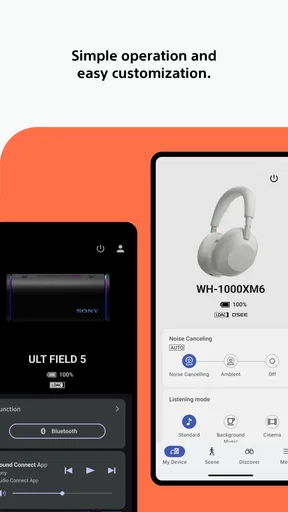
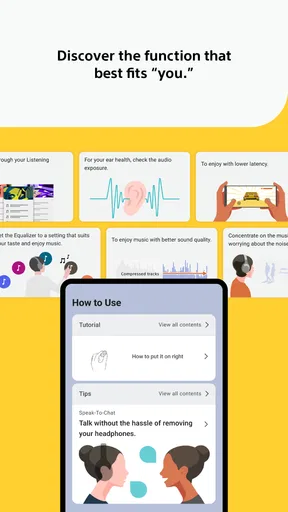
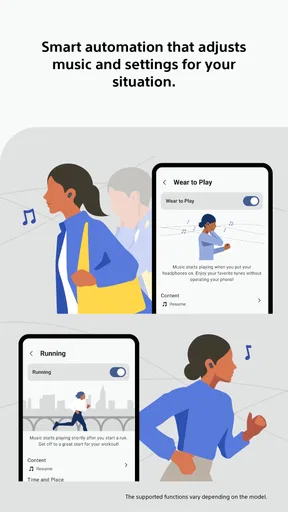
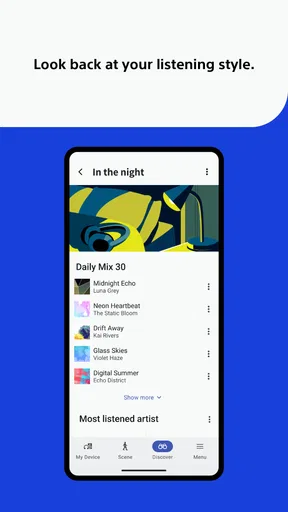
Our Review of Sony | Sound Connect
 Analysis by Appyee
I spent time with Sony | Sound Connect as the companion app for Sony audio equipment, and my impression is that it works best when you want a more personal listening setup rather than another general music player. It is a free Tools app from Sony Corporation, aimed at adjusting and managing the experience around compatible Sony headphones and other audio products. The central idea is simple: instead of accepting the default sound and control layout, I can use the app to make the equipment feel more suited to my habits.
That distinction matters. This is not an app for browsing songs, streaming albums, or replacing the music service already on your phone. I see it as a control room for supported Sony audio hardware. If you already own a compatible product, it can make everyday listening more convenient. If you do not use Sony equipment, there is little reason to install it just because it is popular. The app’s value depends heavily on the device connected to it.
How Sony | Sound Connect feels in everyday use
I find Sony | Sound Connect most useful when I treat it as a companion for deliberate adjustments, not an app I need open throughout the day. In this section, I’ll focus on how to make the first connection feel manageable and how to judge whether the controls are helping. A good first result is modest: connect your Sony audio device, find one setting that suits your routine, and leave the rest for later.
Quick access is more useful than flashy design
My first expectation with a companion app like this is that it should get out of the way. I do not want to spend several minutes searching through menus every time I need to adjust a listening setting. Sony | Sound Connect generally makes sense when approached as a practical dashboard: connect the supported audio device, inspect the available controls, and then return to listening.
The perceived speed is helped by the narrow purpose of the app. It is not trying to load a social feed, a large video library, or a catalogue of music. That focused role makes it feel more direct than many all-purpose audio applications. The important qualification is that the experience can vary with the connected Sony product. The controls shown to me are tied to the equipment I am using, so the app should not be judged as though every Sony headphone or speaker exposes the same options.
I also appreciate that personalization has practical value here. A small adjustment can make a bigger difference than changing music apps, especially when I listen in different places. My preferred setup for a quiet room is not necessarily the one I want on public transport, at work, or while walking. Having those decisions associated with the audio device is more convenient than trying to remember every setting manually.
What happens during a demanding listening session
The most revealing moments are not when I open the app once and close it. They are the situations where I connect, change settings, switch between listening environments, and return to the app later. In that kind of routine, the application’s usefulness comes from reducing repeated setup rather than performing a single impressive action.
A realistic example is my morning commute. I connect my Sony headphones before leaving home, check the current listening setup, and make a change if the surrounding noise or my preference has shifted. Later, when I arrive at work, I may want a different balance or control arrangement. The app is most valuable in that scenario because it keeps the adjustment process in one place. I do not need a separate audio utility for each small change.
There is a trade-off, though. Companion apps can become a source of friction when the user expects every option to appear immediately, regardless of the connected model. With Sony | Sound Connect, I would approach the settings as device-specific rather than assuming that an option visible in a tutorial or on another Sony product will be available on mine. That is not a weakness in the app alone; it is a consequence of supporting a broad family of audio hardware.
Stability matters more than opening speed
For this kind of app, stability is more important to me than a dramatic launch animation or an elaborate interface. If the app opens reliably and remembers the relationship with my audio equipment, it has already done the essential job. The experience should be judged over repeated use: connecting after the phone has been idle, returning after listening through another app, and making an adjustment without having to rebuild the entire setup.
My practical advice is to treat the first connection as part of the setup process, not as a test of the app’s everyday performance. Once the supported device is recognized, I would explore the available controls while at home, where there is time to understand them. That avoids trying to learn the interface in a noisy station or while crossing a street. It also makes it easier to notice which changes are genuinely useful and which ones I will probably never touch again.
The app has a strong public track record, with an average rating of 4.4 from around 403 thousand ratings. That does not guarantee that every phone and every Sony product will behave identically, but it does suggest that the basic companion-app idea works for a large audience. I read that figure as evidence of broad usefulness rather than proof of a flawless experience.
Recovery when the connection is not smooth
Wireless audio is a chain of devices, and the app is only one part of it. If a connection feels slow or a setting does not appear, I would first check the simple things: whether the intended Sony device is active, whether the phone is connected to the correct product, and whether another nearby device has taken priority. Reopening the app after confirming the audio connection is often a more sensible first move than changing several settings at once.
I also recommend making one adjustment at a time. If I alter multiple sound or control choices together, it becomes difficult to identify which change caused an unexpected result. A slower, methodical approach is particularly useful when I am trying to create a setup for commuting or office work. Once the preferred arrangement is clear, the app becomes less demanding because I am no longer experimenting during every listening session.
Users should also keep their expectations realistic about recovery. Sony | Sound Connect can organize supported device controls, but it cannot turn incompatible hardware into a supported product or repair a general phone connection problem. For someone who wants a universal audio manager that works equally with equipment from different brands, a broader system-level approach may be more suitable.
Phone resources and device constraints
Because this is a focused companion tool rather than a streaming service, I would not expect it to behave like a heavy media application. Its main workload is related to communicating with supported Sony audio hardware and presenting the controls that belong to that hardware. That makes it a reasonable fit for people who want customization without adding another music library or playback environment to the phone.
Still, the phone and the audio device both shape the experience. The app cannot offer the same control set across every Sony product, and the phone’s wireless state can influence how quickly the app recognizes equipment. I would therefore choose it based on ownership of compatible Sony hardware first, and on general app popularity second. The fact that it has passed 10 million installs shows wide adoption, but adoption alone does not make it useful for someone outside the intended ecosystem.
It is also worth separating the app from the audio product itself. Installing Sony | Sound Connect does not automatically improve the physical capabilities of headphones or speakers. It gives me a way to work with the options those products support. If the hardware has limits in comfort, battery life, microphone quality, or sound output, the app should not be treated as a solution to all of them. Its contribution is control and personalization, not a replacement for choosing the right device.
Where it beats ordinary phone controls
The usual alternative is to rely on the phone’s Bluetooth panel, the audio device’s buttons, and perhaps a general equalizer. That approach can be enough for basic playback, but it often scatters the experience across different places. Sony | Sound Connect is more appealing when I want Sony-specific controls gathered together instead of switching between system menus and hardware buttons.
Compared with a universal equalizer, its advantage is context. A generic tool may adjust the phone’s output broadly, while a manufacturer companion app is designed around the supported Sony equipment. That can make the workflow more coherent, particularly when I want to change a device-related option rather than simply raise bass or treble. The downside is obvious: a universal tool is more flexible across brands, whereas this app makes the most sense inside Sony’s ecosystem.
Compared with using only the physical buttons, the app offers a clearer way to inspect and modify settings. Buttons are excellent for quick actions when I am walking or carrying a bag, but they are not always ideal for understanding the current configuration. I see the app and the hardware controls as partners: use the app for setup and deliberate changes, then use the buttons for immediate everyday actions.
Three practical habits that improve the experience
My first useful habit is to create the listening setup at home before relying on it elsewhere. I can test the controls in a quiet environment, decide which changes actually help, and avoid making rushed adjustments in traffic or on public transport. This is a small workflow change, but it makes the app feel faster because I spend less time searching when I am outside.
Second, I would review the available device controls after changing headphones or speakers rather than assuming that the previous arrangement carries over perfectly. A new Sony product may present a different set of possibilities, and recognizing that early prevents confusion. The app is more predictable when I treat each connected product as its own configuration rather than as a generic Sony audio endpoint.
Third, I would use the app for intentional changes and leave routine playback to the music service and physical controls. Constantly reopening a companion app can make listening feel more complicated than it needs to be. Once I have a setup that works, the best result is often to stop adjusting it and let Sony | Sound Connect remain available for occasional fine-tuning.
Who should install it, and who should skip it?
I would recommend it to someone who owns compatible Sony audio hardware and wants more control than the phone’s basic Bluetooth screen provides. It is especially suitable for listeners who move between quiet rooms, commutes, offices, and other environments, because personalization is more valuable when listening conditions change. It also suits people who prefer a manufacturer-supported companion experience instead of combining several unrelated audio utilities.
I would skip it if I do not own a supported Sony product, or if I only need play, pause, volume, and track controls. In that case, the phone and the device’s physical buttons may already cover the essentials. I would also look elsewhere if I regularly switch between brands and want one equalizer or control panel for everything. Sony | Sound Connect is focused, and that focus is its strength only when it matches the equipment I use.
The app is free and carries an Everyone age rating, which makes it straightforward to try for the intended audience. Sony Corporation released it on February 28, 2017, and its continued presence alongside a large installed base gives it the feel of an established companion rather than a short-lived experiment. I would still make the installation decision based on the exact Sony device I own, not simply on the age or popularity of the application.
My performance verdict
After looking at speed, repeated use, recovery, and device limitations together, I see Sony | Sound Connect as a practical tool rather than an app I would open for entertainment. Its perceived performance comes from doing a narrow job: helping me personalize supported Sony audio equipment without becoming another music platform. When the device connection is already in order, the workflow feels more purposeful than using scattered phone controls.
Its main limitation is also clear. The experience is tied to compatible Sony hardware, and the available controls depend on the product connected. That makes it less attractive than a universal audio utility for mixed-brand households. It also means that a user expecting a dramatic improvement in sound from the app alone may be disappointed; the software can help configure the equipment, but it cannot replace the hardware’s underlying qualities.
For my use, the best reason to keep it installed is not that I need it every minute. It is that, when I want to refine the way my Sony device behaves, I have a dedicated place to do it. The app’s broad adoption and 4.4 average support that practical appeal, while the free price removes much of the risk for compatible-device owners. My recommendation is simple: install it if Sony audio hardware is already part of your routine, but skip it if you are looking for a brand-neutral music or equalizer app.
In short, Sony | Sound Connect is most successful when I treat it as a setup and personalization companion. It can make repeated listening situations easier to manage, especially when I prepare the controls before leaving home and avoid changing several things at once. It is not universal, not a replacement for a streaming service, and not a cure for weak hardware. Within its intended role, however, it is a sensible free Tools app for making compatible Sony audio equipment feel more deliberately configured to the person using it.
Verdict
Strengths of Sony | Sound Connect
- Clear, user-friendly controls for adjusting compatible Sony audio devices.
- Useful equalizer presets and custom sound profiles for different listening preferences.
- Firmware updates can improve device performance and add new features.
- Displays battery levels and connection status in one convenient place.
- Supports personalized noise-canceling and ambient sound settings on supported models.
Limitations of Sony | Sound Connect
- Works only with selected Sony headphones, earbuds, and speakers.
- Some advanced options vary considerably between different device models.
- The app may occasionally lose connection and require reopening or reconnecting.
- Several settings are unavailable when using products from other brands.
- Background operation may contribute to additional battery usage on some phones.
Other Releases by Sony Corporation
View All
Sony | Creators' App
Photography4.2
Similar Picks in This Category
View All
Google LLC4.0

Gboard - the Google Keyboard
Google LLC4.5

Google Play services
Google LLC4.3

Google Play Store
Google LLC4.9

Files by Google
Google LLC4.5

SHAREit: Transfer, Share Files
Smart Media4U Technology Pte.Ltd.4.3
Frequently Asked Questions
What is Sony | Sound Connect, and what devices does it support?
Sony | Sound Connect is Sony’s companion app for managing compatible wireless headphones, earbuds, and selected audio products. After pairing a supported device, you can adjust sound settings, configure noise cancellation and ambient sound, install firmware updates, and access product-specific options. Compatibility depends on the exact model, Android or iOS version, and available app features, so checking Sony’s supported-device list before downloading is recommended.
Can I use Sony | Sound Connect to customize sound and noise cancellation?
Yes. The app provides several audio controls, although the available options vary by Sony product. Depending on your headphones or earbuds, you may be able to use an equalizer, adjust bass levels, select sound presets, control noise cancellation, configure ambient sound, and enable adaptive listening features. These settings are useful for switching between music, commuting, office, and conversation use without changing controls manually on the device.
Does Sony | Sound Connect work without an internet connection?
The app can generally be used for many basic controls after your headphones or earbuds have been paired, including changing certain sound and noise-control settings. However, an internet connection may be required for downloading firmware updates, loading account-related features, viewing support information, or retrieving some personalized content. Bluetooth must remain enabled, and some functions may be unavailable if the product is not fully compatible with the app.
Is a Sony account required to use Sony | Sound Connect?
A Sony account is not always necessary for basic pairing and device control, but some features may encourage or require sign-in. Account-based functions can include personalized recommendations, activity-related information, backup or synchronization options, and selected Sony services. If you prefer not to create an account, you should still be able to access core controls on many supported products, though the exact experience depends on the model and region.
Does Sony | Sound Connect drain the battery or collect personal data?
The app may use Bluetooth and occasional background activity to communicate with connected headphones, display battery information, or support device management, so battery consumption can increase slightly compared with using the headphones alone. It may also request permissions such as Bluetooth, notifications, and location-related access depending on the platform. Review the privacy policy and permission prompts carefully, and disable optional permissions that are not needed for your preferred features.
